

Business phone system
- Cloud featuresCall routing, IVR, queues, recording and voicemail to email
- Desktop and mobile appsCalls, SMS, team chat and video meetings in one app
- AI phone agents Built inAnswer every call, book jobs and take messages 24/7
- 90s is callingStill on an old PBX? Here is what you are missing
- International call ratesPer-minute rates to every country we call
Apps and internet
- Desktop app Live demoCalls, chat, SMS and AI summaries in one window
- Mobile app Live demoYour business number on your iPhone or Android
- Why our internetBuilt for voice, so calls stay clear when the line is busy
- NBN for businessBusiness NBN set up alongside your phones
- SUPA InternetFast fibre for buildings on the SUPA network
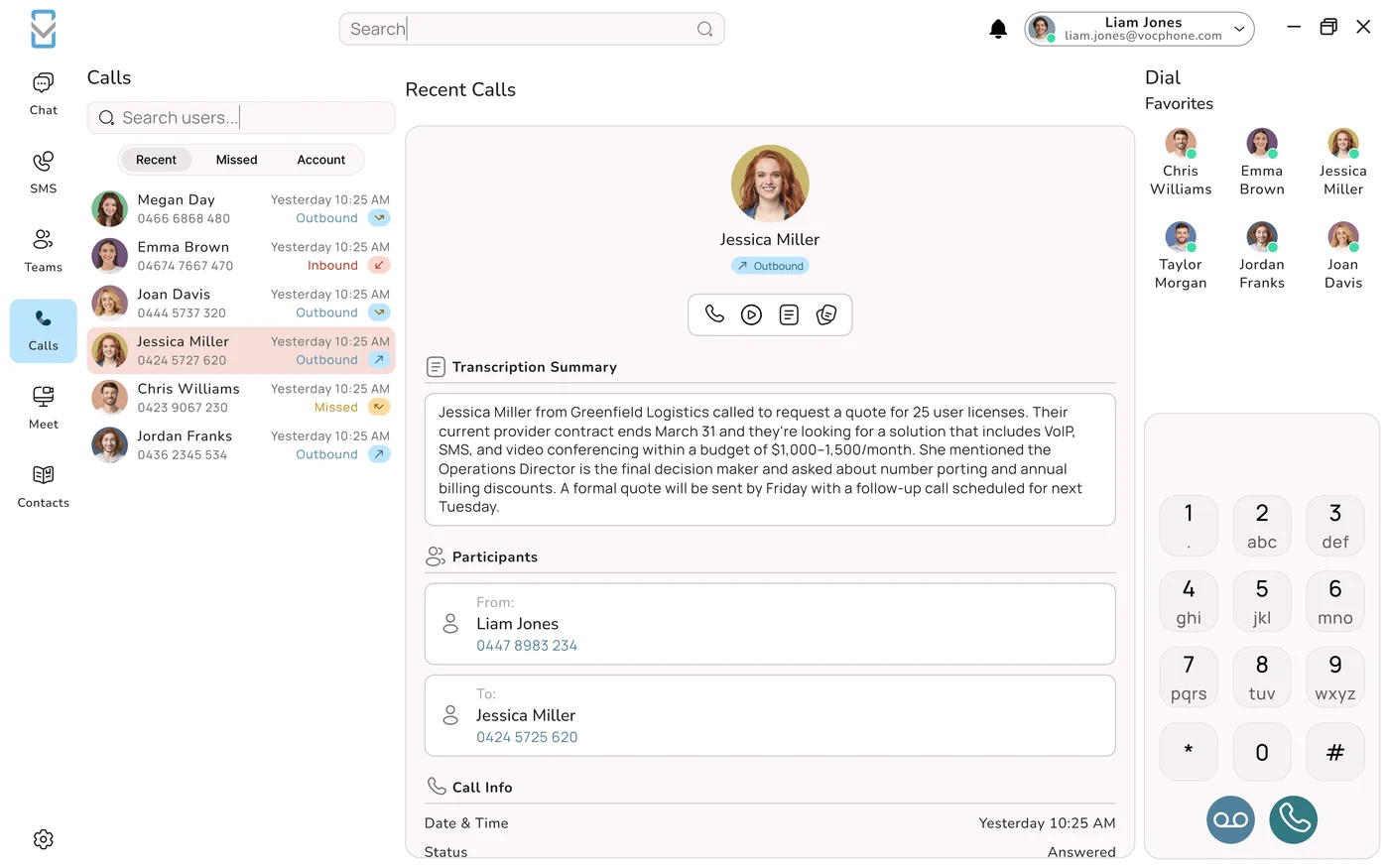
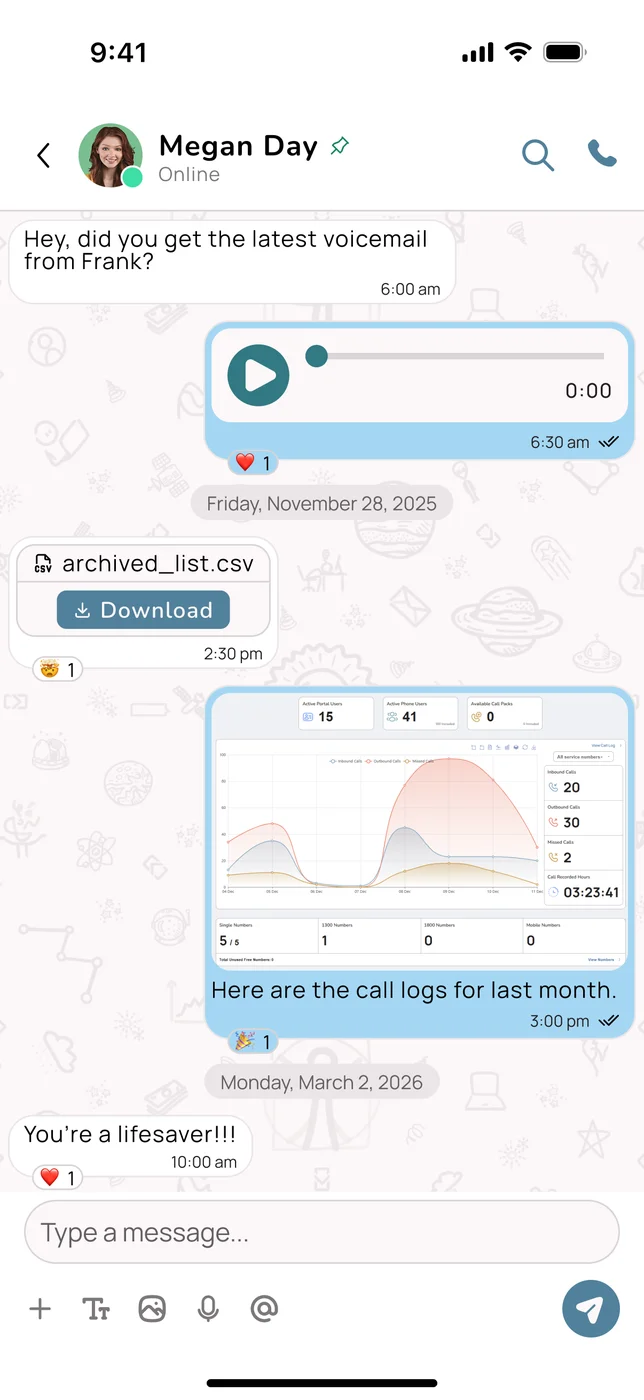
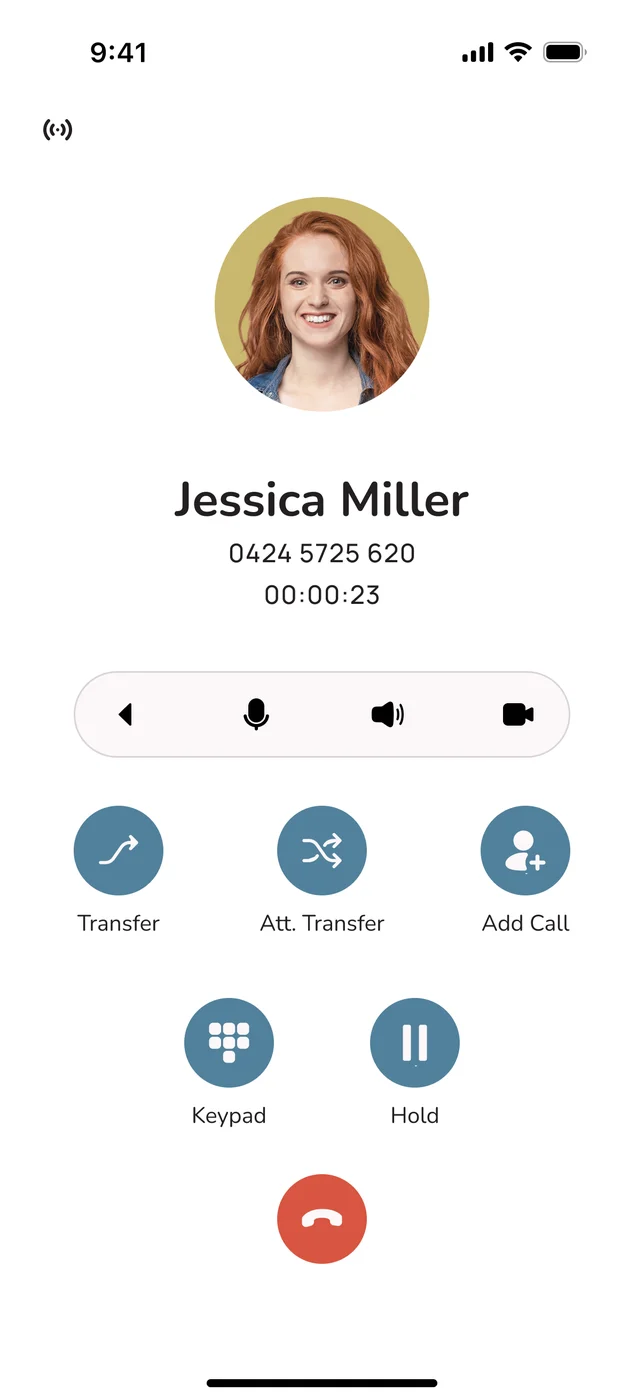
New Try it liveTake the VOCPhone apps for a spin, right here
Click through working demos of the desktop and mobile apps: calls with AI summaries, team chat, SMS and more. No download, no sign up.
Desktop app demoMobile app demoOur own network, not a reseller's. 99.99% uptime and support from our team in Australia.Book a demoAll features
AI on your phone line
VOCPhone vs AI receptionists
See every comparisonAI AgentsEvery call answered, day or night
It picks up with a natural Aussie accent, answers questions, books the job and sends you the summary.
Meet your AI agentBuilt into your phone system, not bolted on. No extra number, no call forwarding.Book a demo
Professional services
Trades, retail and hospitality
Browse all industries





Our customersFrom one-person shops to national brands
See how businesses like yours set up their phones.
Find your industryWorking on your own? We have plans made for sole traders and freelancers too.Self-employedStartups
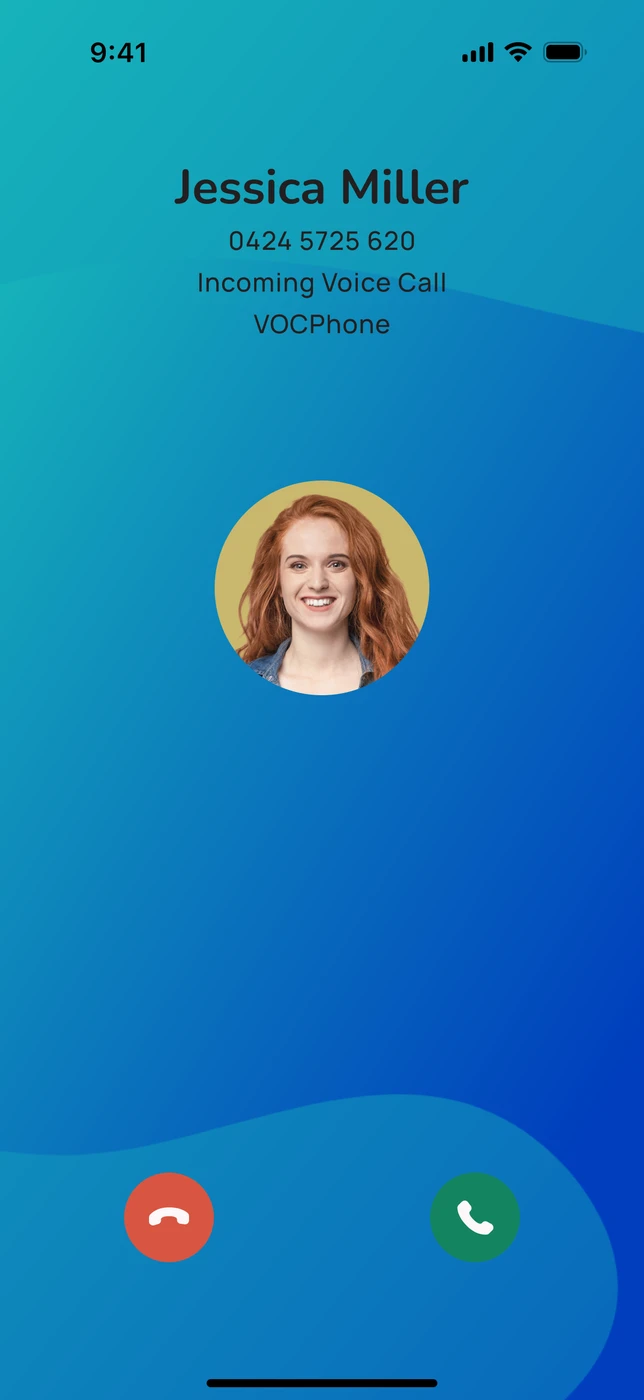
Voice plansBusiness phone planfrom$84.90/month3 users included on a 36-month term, then $30 per extra user.Free setup and free number portingDesktop and mobile apps includedAI Agents built inSee voice plans![Incoming call in the VOCPhone mobile app]()
![Friends watching a sunset]()
Internet and more
- Voice plansBusiness phone plans from $84.90 a month, 3 users included
- HardwareHandsets, headsets, conference phones and accessories
- NBN InternetBusiness NBN from the team that runs your phones
- SUPA InternetFibre plans for buildings on the SUPA network
- Upload your billWe send a written comparison within one business day

Bundle and savePhones and internet from one Aussie team
One provider to call when something needs fixing. No finger pointing.
Compare all plansMonth-to-month plans available. Keep your existing numbers when you move across.Sign up online1300 663 222
Learn and get set up
The library at a glanceBrowse all
147business
guides530kreads
so far
guides530kreads
so far
Guides by topic
- Phone systems55
- AI22
- NBN14
- Industries8
- Costs6
- Security4
- News2
- Other guides36


Need a hand? Our support team is based in Australia, with AI agents answering after hours.Contact support

Call us on 1300 663 222 or send a message and the team will get back to you.Send a message
VOCPhone desktop app
Your whole phone system, in one window.
Calls with AI summaries, team chat, business SMS, meetings and tasks, side by side on Windows, Mac and Linux. Have a click around the live demo below. It runs right here in your browser.
Free for every VOCPhone user
Same number as your desk phone
Sign in with a link, no password
Jump to
Everything here is clickable. Sample business, sample people, sample numbers. Nothing you type leaves your browser.
Everything you just clicked, on your desk.
The desktop app is the same VOCPhone phone system as your desk phone and mobile, with every tool your team uses through the day in one place.
Calls with AI summaries
Every call is recorded, transcribed and summarised, so nothing gets lost between calls.
- Recent, missed and account wide history
- Recordings and transcripts in the call log
- Hold, mute, keypad, blind and attended transfer
Team chat
Direct and group chats for the whole business, secured end to end.
- @mentions, pinned chats and voice notes
- Preview PDFs and spreadsheets without downloading
- Drafts saved when you switch chats
Business SMS
Text customers from your business numbers, not your personal mobile.
- Tags show which line each SMS is on
- Inbox, spam and archive
- Live character count, so no surprises
Live team presence
See who is free, ringing or on a call before you transfer or walk over.
- Online, Ringing, On Call and Offline at a glance
- Custom status with an emoji and auto clear
- One click to chat or call anyone
Calendar and meetings
Company calendars, leave and your own diary, with video meetings built in.
- Schedule meetings with email invites
- Always open meeting rooms for huddles
- Meeting audio pauses when a call comes in
Tasks and boards
Turn calls and chats into follow-ups that actually get done.
- Shared boards with drag and drop
- Assignees, priorities and due dates
- Comments linked to customer accounts
Contacts
Your team, shared company contacts and your own, all in one directory.
- Team, Account and External contacts
- Favourites on your dial pad
- Call logs, chats and tasks per person
Alerts
Mentions, missed calls, tasks and meetings in one feed, so you never miss a thing.
- Filter by type or unread
- Click through to the call, chat or task
- Mark everything read in one go
The little things that make a big difference.
Headset buttons just work
Answer, hang up, mute and hold from the buttons on your USB or Bluetooth headset.
Ring out loud, talk in private
Ring through your PC speakers while call audio stays in your headset. Pick from three ringtones.
Reconnects on its own
Wake your laptop or change Wi-Fi and the app reconnects calls and chat for you.
Status that keeps up
Set Away or Busy with a custom message. It switches to On a Call automatically and clears when you choose.
No passwords to forget
Type your email and click the sign in link we send you. That's it.
Out of your way
Keep call windows on top, or turn that off and control pop-ups in Notification settings.
Up and running in three steps.
Already with VOCPhone? You can be taking calls on your computer in a couple of minutes.
We set you up
Your admin adds you as a phone user in the Customer Portal with your email and a caller ID. Not sure who that is? Our team can do it for you.
Download and enter your email
Install the free app for Windows, Mac or Linux, open it and type the email address you were set up with.
Click the link in your inbox
We email you a sign in link. Click it and you're in, with your extension, chats and history ready to go.
Questions, answered.
Is the desktop app free?
Yes. The desktop and mobile apps are included for every VOCPhone user at no extra cost.
What computers does it run on?
Windows, Mac and Linux. There are also free apps for iPhone and Android, and they all share the same number, history and chats.
I didn't get my sign in email. What do I do?
Check your junk or spam folder first. If it's not there, make sure you typed the exact email address you were set up with.
Sign in also needs a caller ID on your user in the Customer Portal. If one isn't set, the sign in won't go through. Our support team can check this for you.
My sign in link has expired.
Links only last a short time for security. Go back to the app, enter your email again and a fresh link is sent straight away.
People can't hear me, or I can't hear them.
Open Settings, Audio and check the right microphone and speaker are selected, then click Test audio. Also check your headset isn't muted and the Mute button isn't on during the call.
My headset's answer and hang up buttons don't work.
Plug your headset in before you open the app. Some headsets also need permission to talk to the app, which you'll find in your computer's security settings.
I can't see the SMS tab, or one of our numbers.
SMS access is given per number. An admin assigns you to each number in the Customer Portal, under Numbers. The tags you see, like Sales or Support, come from each number's display name.
Why was my SMS sent as two messages?
One SMS is 160 characters. Longer messages, or messages with emoji and some special characters, are split into parts and each part is billed. The counter under the message box shows you before you hit send.
The app is running slowly.
Check Settings, Updates for a pending update and stay on the Stable channel. Restarting the app often helps, and make sure no VPN is switched on while you use it.
Ready to put it on your desk?
Download the app if you're already with VOCPhone, or book a demo and we'll show you the lot on a call.
Need a hand installing? Contact support or call 1300 663 222.